How to Analyze Data With AI (No Data Science Degree)
You can analyze data with AI using the spreadsheet tools you already pay for, and you won’t need to write a line…
You can analyze data with AI using the spreadsheet tools you already pay for, and you won’t need to write a line of code. Most guides skip what happens to your file the moment you hit upload. This one covers seven steps, from writing the question to making the decision, plus a plain list of data that should never go into an AI chat. A small online shop’s sales export runs through every step as the example.
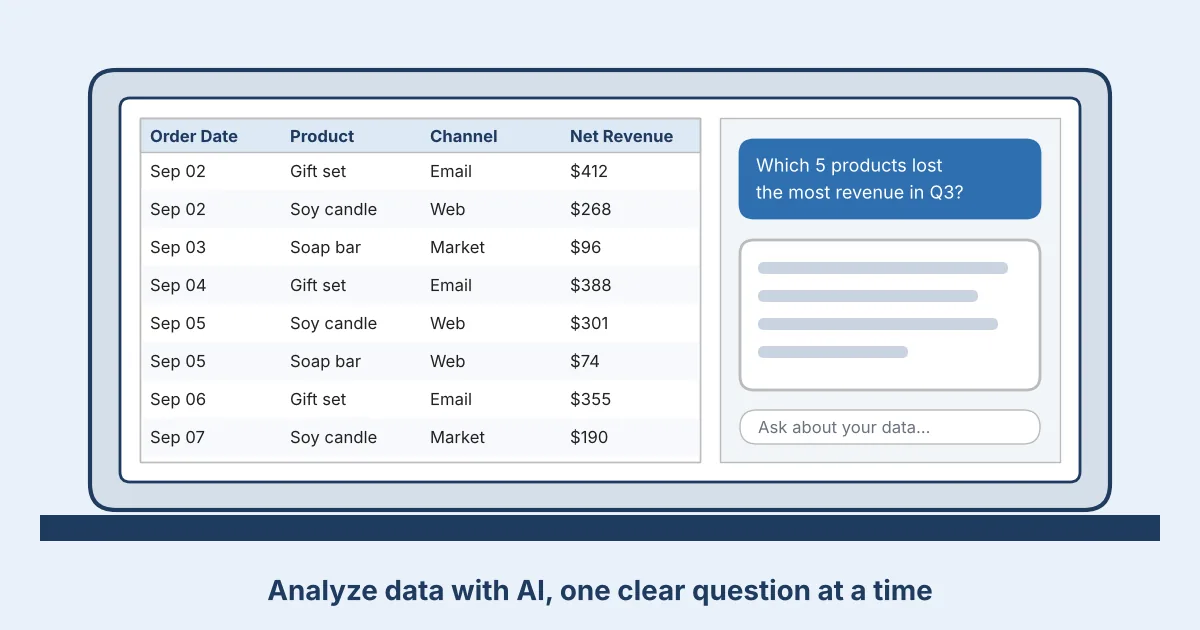
What AI Can (and Can’t) Do With Your Business Data
Microsoft says Copilot in Excel can suggest formulas, show insights in charts and PivotTables. Your workbook has to be stored on OneDrive or SharePoint, though. Gemini in Google Sheets does similar work if you’re on an eligible Google Workspace or Google AI plan.
What AI can’t do is know your business. It won’t know March looked weak because you closed for a week. And it hands you a wrong total in the same calm voice it uses for a right one.
| Where AI helps | Where it falls short |
|---|---|
| Summarizing a big table fast | Misreading a column, like dates stored as text |
| Writing formulas and PivotTables | Confident totals that don’t match your data |
| Drawing a first-pass chart | Explaining why something changed |
Ask for last quarter’s revenue and a tool may count the “Grand Total” row as one more order. Nothing looks broken until you check.
Pick Your AI Tool
For AI for business data analysis, start with the assistant built into the spreadsheet app you already use. A bakery tracking orders in Google Sheets should try Gemini first; a bookkeeper in Excel, Copilot. Move on when your files or questions outgrow them.
| Tool | Good fit when | Watch for |
|---|---|---|
| Copilot in Excel | Your data already lives in Excel | Workbook on OneDrive or SharePoint |
| Gemini in Sheets | Your data lives in Google Sheets | Eligible Workspace or Google AI plan |
| ChatGPT data analysis | You have a one-off CSV or spreadsheet | Limited on Free; business plan for company data |
| Julius AI | You want plain-English CSV questions | SOC 2 Type II; training terms unstated |
| BI tools (Power BI, Tableau) | You need live multi-source dashboards | More setup |
How to Analyze Data With AI in 7 Steps
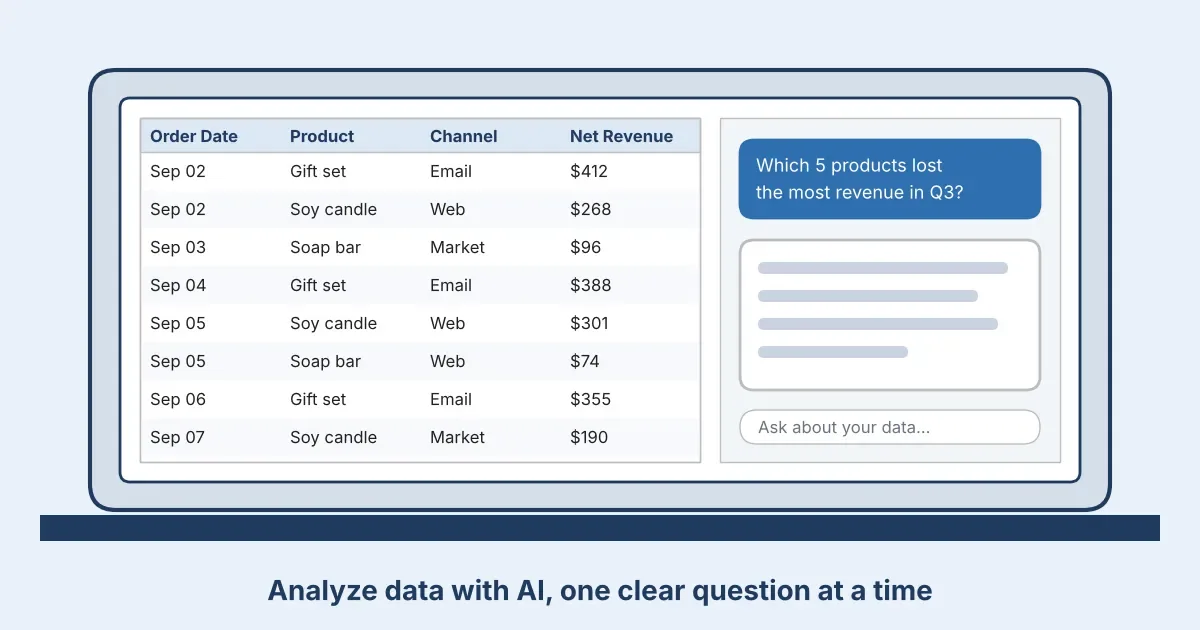
Here’s how to use AI for data analysis without touching code. Our example is Harbor & Pine, an invented online shop selling candles and soap, with a 14-month sales export and a hunch that something went wrong in Q3.
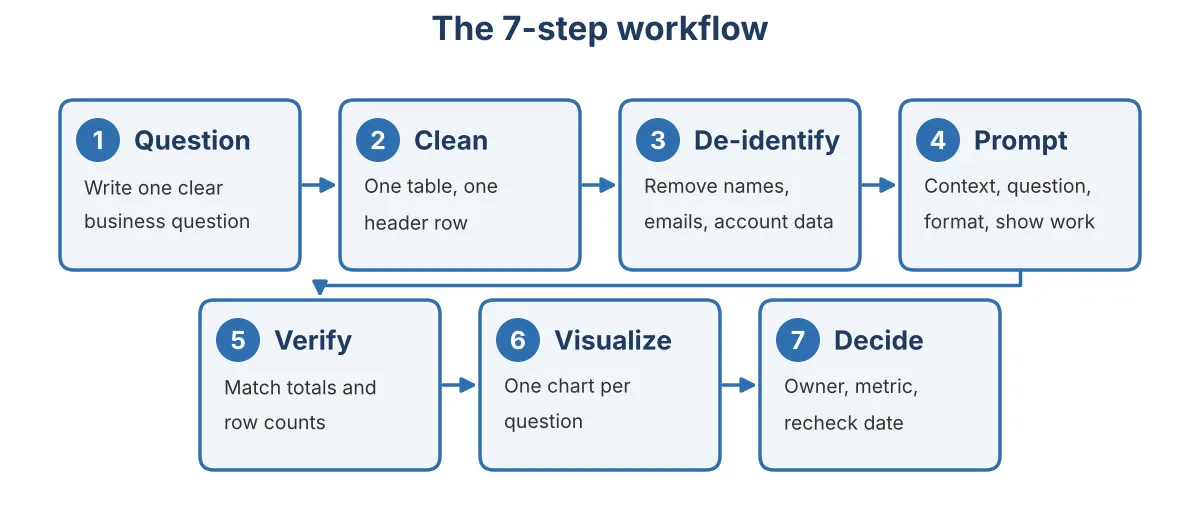
Step 1: Write down the business question
“Analyze my sales” gets a vague, padded summary. Try this: “Which five products lost the most revenue from August to September, and in which channel?” If you can’t say your question in one sentence, the AI can’t answer it either.
Step 2: Prepare and clean the file
AI reads tidy tables best, so check these before you upload anything:
- One table per sheet, one header row
- Clear column names (Order Date, not Col7)
- One date format and one currency
- No totals rows, merged cells or blank rows
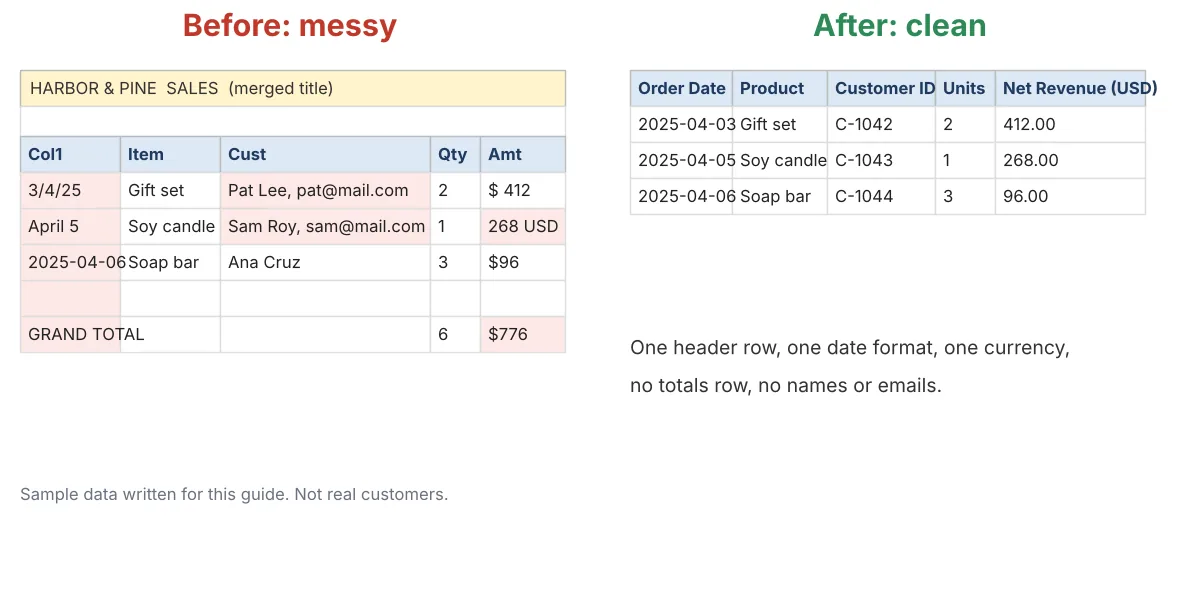
To analyze Excel data with AI, format the range as a table. For Gemini, convert the file to a native Google Sheet, which Google says works best. ChatGPT caps spreadsheets at roughly 50MB, depending on row size, per OpenAI’s file upload FAQ.
Step 3: Strip out sensitive data before you upload
The FTC’s guide for businesses has a heading worth borrowing: “Keep only what you need for your business.” Analysis rarely needs names, so delete the name, email, phone and address columns and swap customers for IDs like C-1042. Better still, aggregate: monthly revenue by product beats every order with a buyer attached.
Step 4: Ask the AI with a clear prompt
A good prompt has four parts: context, the question, a request to show its work, and the format you want.
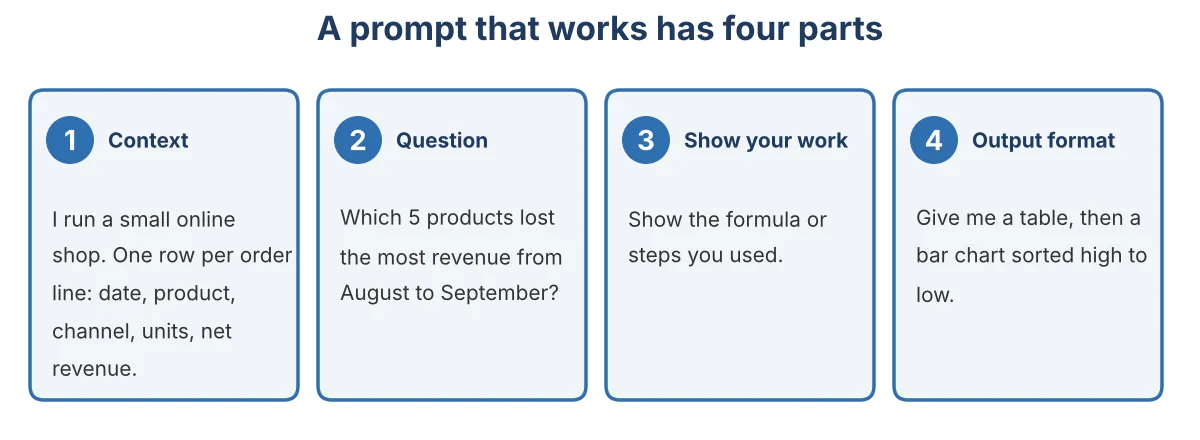
Template: I run a small online shop. This sheet has one row per order line (date, product, channel, units, net revenue). (your question here). Show the formula you used and answer as a table.
Four prompts you can copy and adjust:
Monthly trend: Total net revenue by month for the last 14 months, as a table and a line chart. Flag months that moved more than 15% from the month before.
Top and bottom products: List the top 5 and bottom 5 products by Q3 net revenue, with units sold.
Outliers: Find orders with unusually high or low units or revenue. List them and say what makes each one stand out.
Simple forecast: Using the last 14 months, give a rough revenue range for the next three. List your assumptions and where the estimate is weakest.
Step 5: Check the math
Before you trust a single number:
- Compare the AI’s row count with your source file.
- Check its grand total against a plain SUM.
- Ask for the formula or code behind each figure, and read it.
- Rebuild one number with a PivotTable.
- Look for dropped blanks and duplicated rows.
- Ask: “What assumptions did you make?”
Say the AI reports Q3 revenue of $48,200 and your PivotTable shows $46,900 (hypothetical numbers). The gap: 31 refund rows the AI skipped.
Step 6: Visualize the answer
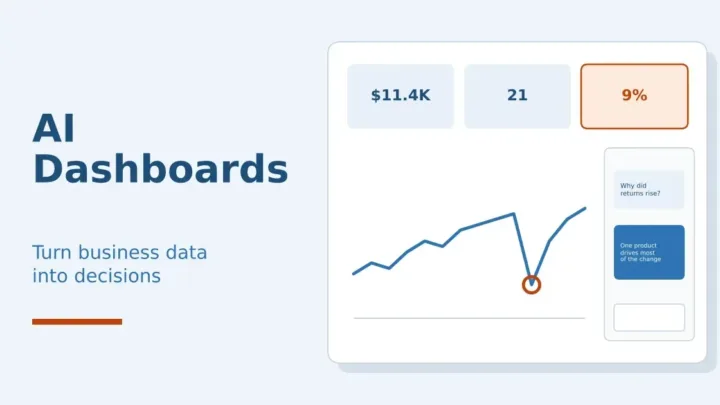
One chart per question: bars to compare categories, a line for change over time. Tell the AI who it’s for, such as “a bar chart sorted high to low, with a title that states the finding.” If you repeat the analysis monthly, an AI dashboard saves the rework.
Step 7: Turn the insight into a decision
Write the result down as: finding, decision, owner, metric to watch, recheck date.
For Harbor & Pine: gift sets lost the most revenue in September, mostly via email. Decision: rerun the email promotion with a new offer. Owner: the marketing lead. Metric: weekly gift set revenue. Recheck: mid-November.
One caution: AI finds patterns, not causes. A dip alongside fewer email sends doesn’t prove the sends caused it, so test before betting big. Once the routine works, you can automate your business with AI.
What Not to Upload to AI Tools
Some data doesn’t belong in an AI chat at all, and the rest belongs only in plans with clear written limits on how your data is used.
Personal identifiers and financial account data
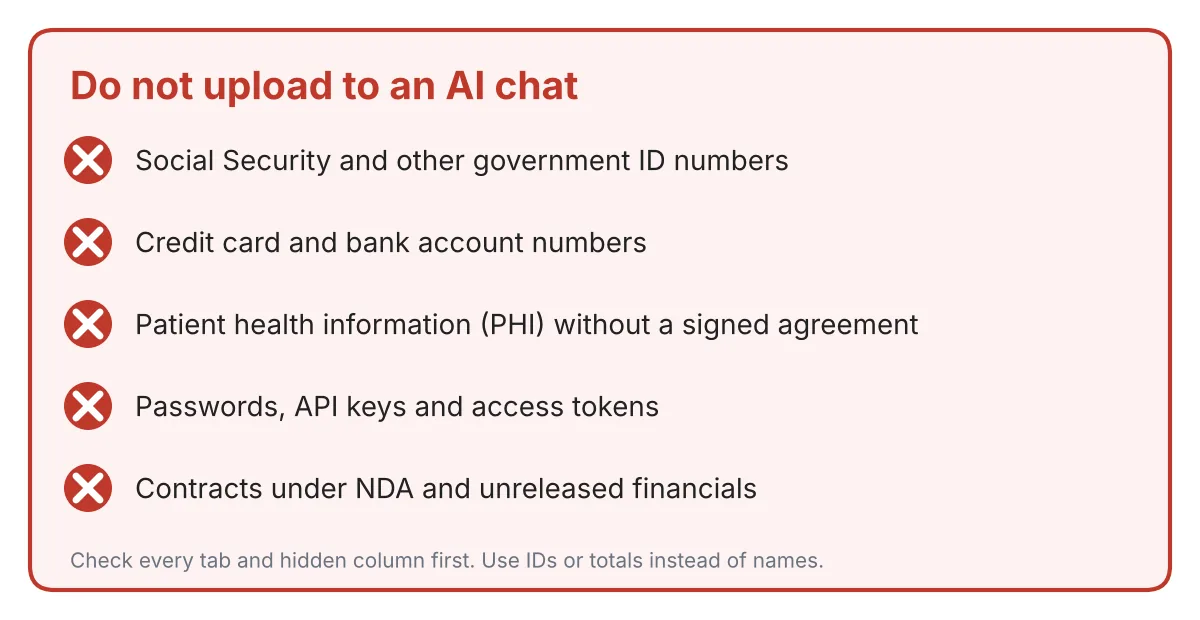
Keep Social Security numbers, card and bank account numbers and full customer contact lists out of every prompt. The FTC guide also says not to use Social Security numbers unnecessarily. If your analysis only needs spend per customer, an ID will do.
Health information
HHS guidance lists consulting and data aggregation among services that can make a vendor a business associate, and requires satisfactory assurances in writing. Without that agreement, keep patient data out of general AI tools. OpenAI says it offers a Business Associate Agreement for ChatGPT for Healthcare and healthcare API customers. This is the basic rule, not legal advice, so ask a compliance adviser first.
Passwords, API keys and confidential documents
Credentials, NDA contracts and unreleased financials don’t belong in prompts. The sneaky ones are a hidden column of customer emails or a payroll tab in a harmless-looking workbook. Unhide everything and check every tab, or copy just the range you need into a fresh file.
Consumer vs business AI plans: who can train on your data
The same tool can follow very different rules depending on the plan. OpenAI states that by default it doesn’t use data from ChatGPT Enterprise, Business, Edu or its API for training. Its pricing page says content on consumer plans is used to train models, with an opt-out available.
Microsoft says prompts, responses and Microsoft Graph data in Microsoft 365 Copilot aren’t used to train foundation models. Julius says it’s SOC 2 Type II compliant, but its pricing page doesn’t say whether your data trains models, so read its privacy policy first.
Retention matters too. OpenAI says qualifying organizations can configure how long business data is kept. Be wary of anyone claiming a tool “never stores” anything.
Common Mistakes When Analyzing Data With AI
- Vague questions. Name the time frame and the measure, not just “analyze my sales.”
- Messy source data. Fix headers, dates and totals rows before you upload.
- Trusting the first answer. Run the Step 5 checks even when the number looks right.
- Uploading the whole workbook. Copy only the range you need into a new file.
- Using a personal account for company data. Use the business plan your company pays for.
- Treating a forecast as a fact. Ask for assumptions and a range instead of one number.
FAQ
Can ChatGPT analyze an Excel file?
Yes. Upload a spreadsheet and ask it to summarize, count rows and draw charts. OpenAI limits spreadsheets to roughly 50MB, and free accounts get three file uploads a day. Always compare its numbers with your original file before relying on them.
Is it safe to upload company data to ChatGPT?
It depends on the plan and the data. OpenAI says business plans aren’t used for training by default, while consumer plans use content for training unless you opt out. Neither suits Social Security numbers or patient records. Check your plan’s terms and your company policy first.
Do I need to know Python to analyze data with AI?
No. These tools work from plain-English requests. You may see a formula or some code in the answer, but you don’t have to write it yourself. Asking the AI to show it is one of the easiest ways to check its work.
How do I know if the AI’s analysis is correct?
Compare row counts and totals with your source file, then rebuild one figure yourself with a PivotTable. Ask the AI for its formula and its assumptions. If one number fails, distrust the rest until you know why. That’s Step 5 above.
What is the best free way to analyze data with AI?
Free options exist but change often. A free ChatGPT account works for a small, de-identified sample, and Julius AI lists a free tier. See whether your Google or Microsoft plan already includes AI features before paying for anything. Never put real customer data into a free tool.
Bottom Line
Ask a clear question, clean and de-identify the file, verify the math, then decide. Do those four things and AI turns into a dependable assistant instead of a risky shortcut. This week, pick one question from your own spreadsheet and run it through Steps 1 to 5.
Related reading: our guide to AI dashboards helps if your team outgrows spreadsheets.
Was this article useful?
Thanks, that helps us decide what to write next.
Spotted a mistake? Report an error and we will fix it, with a dated correction note.