AI Dashboards: How to Turn Business Data Into Decisions
AI dashboards promise faster answers, yet most still get opened on Monday morning, admired for a minute and closed. The charts are…
AI dashboards promise faster answers, yet most still get opened on Monday morning, admired for a minute and closed. The charts are accurate, and the decision gets made on gut feel anyway. AI doesn’t change that unless the dashboard is built around the choices your team actually makes each week. Below is a seven-step method for building one, plus a worked example for a small online store.
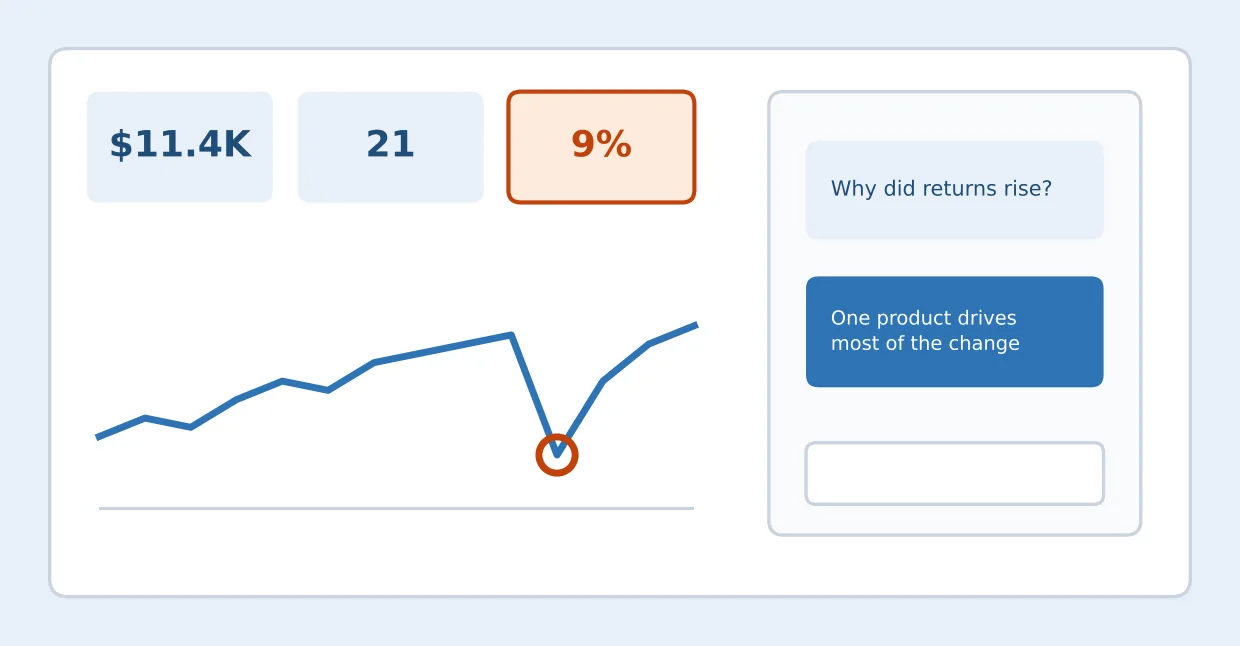
What Is an AI Dashboard (and How Is It Different)?
An AI dashboard, sometimes called an AI-powered dashboard or an AI business intelligence dashboard, is an ordinary dashboard with a few extras. It can flag odd data points, answer questions typed in plain English, summarize what changed and alert you when a number crosses a line.
Power BI flags anomalies, and Copilot writes summaries. Tableau Pulse sends metric digests to email, Slack or Teams. Zoho’s Zia writes narrative insights, and Data Studio (formerly Looker Studio) offers conversational analytics through data agents built in BigQuery.
| Traditional dashboard | AI dashboard | |
|---|---|---|
| Spotting problems | You notice a dip if you happen to look | The tool flags unusual points |
| Asking questions | Build or edit a chart | Type the question, read the answer |
| Staying informed | You open the dashboard | Digests and alerts come to you |
What the table leaves out is judgment. The tool tells you something changed. Whether it matters is still your call.
Step 1: Start With the Decisions, Not the Data
Most dashboards start with whatever data is easiest to pull. Flip that. List the three to five decisions someone makes on a repeating schedule, then work backward from each one. Microsoft’s dashboard design guidance opens the same way, by asking how your audience uses the dashboard and which metrics help them decide.
| Decision | How often | Who decides | Question to answer |
|---|---|---|---|
| Reorder stock | Weekly | Ops manager | Which products run out within two weeks? |
| Shift ad budget | Weekly | Marketing lead | Which campaigns return more than they cost? |
| Chase invoices | Mondays | Finance lead | Which invoices are over 30 days late? |
A chart that feeds no row in this table probably doesn’t belong.
Step 2: Choose a Few KPIs That Answer Those Questions
Give each question a number. A useful KPI card has five fields: metric, definition, target, alert threshold and owner. “Stock days remaining,” target 30, alert below 14, owned by the ops manager, is a KPI. “Inventory” is just a heading.
Skip vanity numbers like page views unless a decision depends on them. There’s no magic count, but the practical limit is one screen, and Microsoft’s tips say to remove whatever isn’t essential. Each KPI should sit in a chain like the one below.
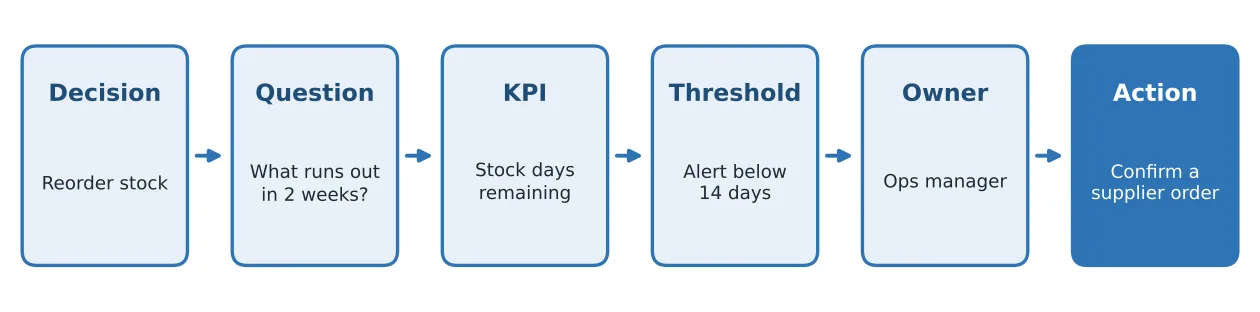
Figure 1. Every KPI should trace back to a decision and forward to an action. Example values.
Step 3: Connect and Clean Your Data
AI on messy data doesn’t fail loudly. It gives you a confident, well-written wrong answer. A few checks catch most of the damage:
- One source of truth per metric, not two spreadsheets that almost match.
- One date format and one currency. A day written 10/03/2026 in one export and 03/10/2026 in another splits a week of sales across two months, and dollars added to pounds give a total that looks fine and means nothing.
- No duplicate rows. A sync that retries can load the same orders twice and inflate revenue.
- Plain column names. “order_date” beats “Date2,” and natural-language questions lean on those names.
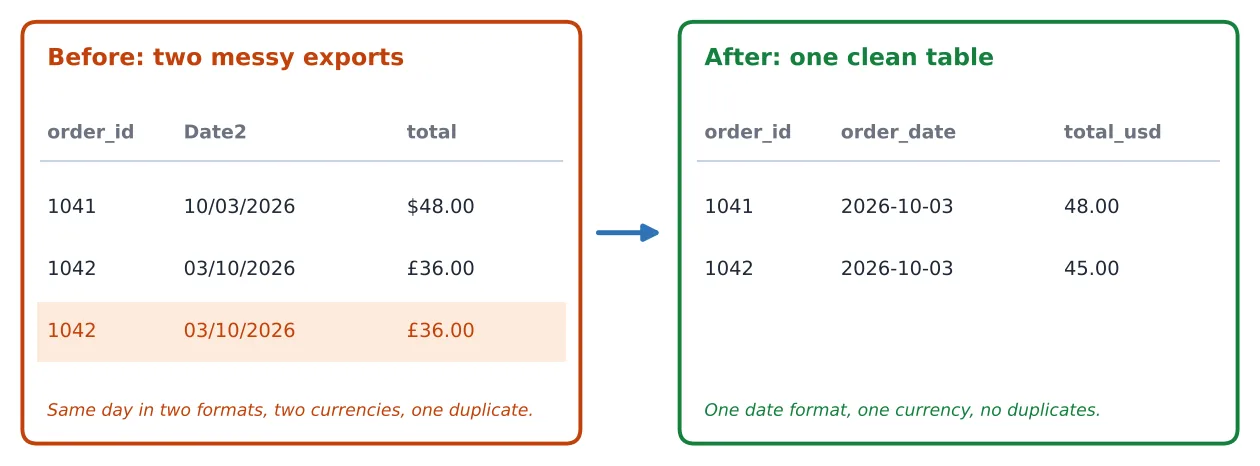
Figure 2. The same two orders before and after cleaning. Hypothetical values.
Copilot’s web modeling feature (in preview) can flag unclear structure and inconsistent naming.
Step 4: Pick a Tool That Fits Your Stack and Budget
Choose by where your data lives and which AI features your plan actually includes. The headline price often leaves the AI out.
| Tool | Starting price | AI features and what they need |
|---|---|---|
| Power BI | Pro: $14/user/month, billed yearly. Free account and Desktop app (sharing needs Pro). | Anomaly detection in Desktop and the service. Copilot needs paid Fabric (F2+) or Premium (P1+) capacity. A Pro or Premium Per User license alone isn’t enough. |
| Tableau Cloud | From $15/user/month (Viewer), billed annually. Creator is $75. | Pulse is a Tableau Cloud feature. Tableau Agent needs Tableau+, which is quoted through sales. |
| Zoho Analytics | Free plan (2 users, 10K rows). | The LLM-powered Ask Zia agent is listed on Premium and Enterprise. |
| Data Studio | Free; Pro $9/user/project/month. | Conversational analytics through data agents built in BigQuery. Gemini features are in preview. |
Prices checked October 16, 2026. They change, so confirm on each vendor’s page before you buy.
Step 5: Design the Dashboard for Fast Decisions
If people can’t read a dashboard at a glance, they stop opening it. Microsoft Learn’s design tips come down to four habits:
- Tell the story on one screen, with the highest-level numbers top-left.
- Use cards for key figures, with a target or last week’s value beside them for context.
- Use bar or column charts for comparisons. Skip 3D charts and pies with many slices.
- Keep big numbers short: $11.4K reads faster than $11,400.00.
Here’s what that looks like in practice. Picture the store in the example below with a first draft of eleven tiles: a nine-slice pie, a 3D bar chart, a page-views gauge and revenue shown to the cent. The rewrite keeps four cards with targets beside them, one line chart and two bar charts. Same data, but now every tile answers a question from Step 1.
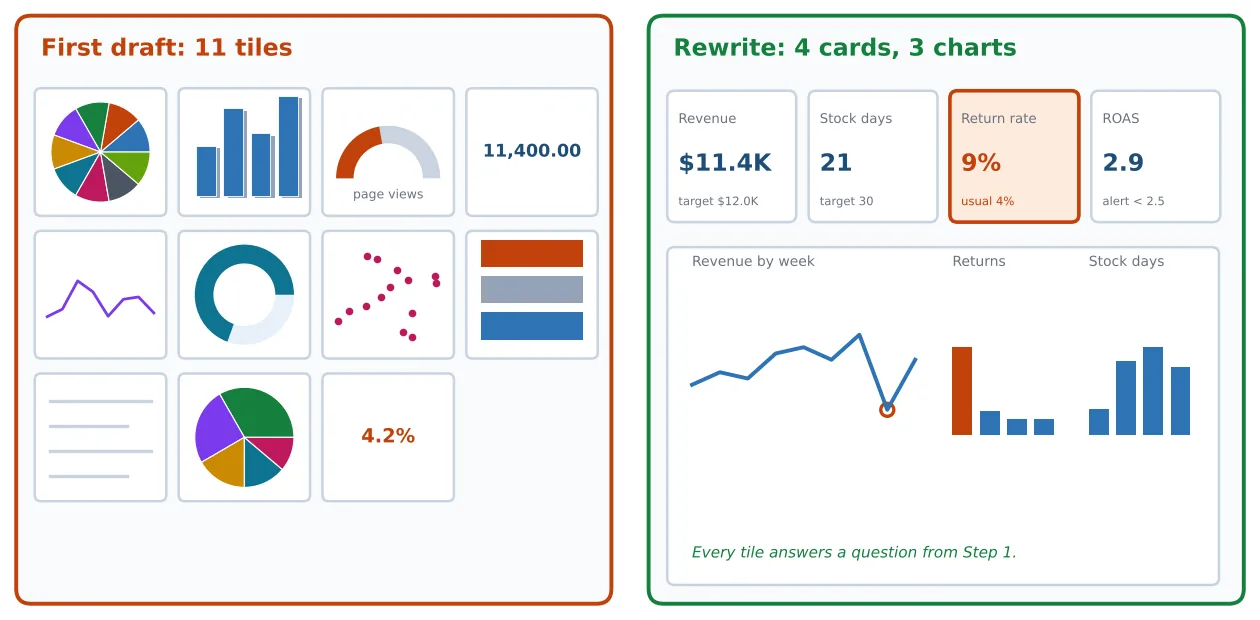
Figure 3. Before and after: the same data, laid out to answer four questions. Hypothetical values.
Step 6: Add the AI Layer: Anomalies, Q&A and Summaries
Once the basics are in place, three AI features earn their keep.
Anomaly detection and explanations
Power BI’s anomaly detection marks points that break the usual pattern and suggests explanations ranked by strength. It needs a line chart with a time series on the axis and at least four data points. The optional “Explain by” field limits which fields it considers. Treat the explanations as leads, not verdicts.
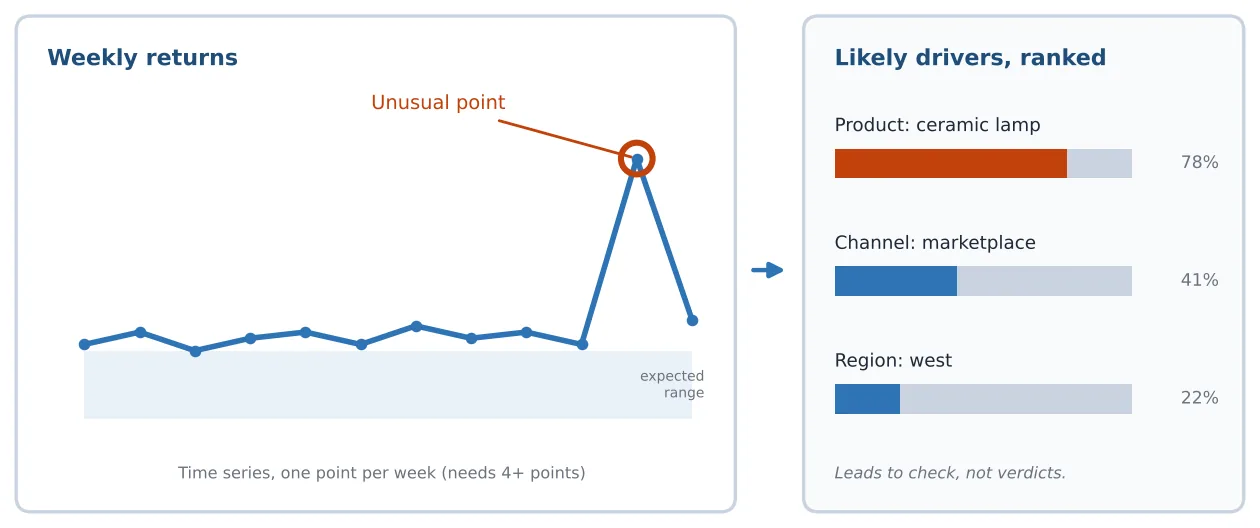
Figure 4. How an anomaly and its ranked drivers might look. An illustration with hypothetical values, not a product screenshot.
Natural-language questions
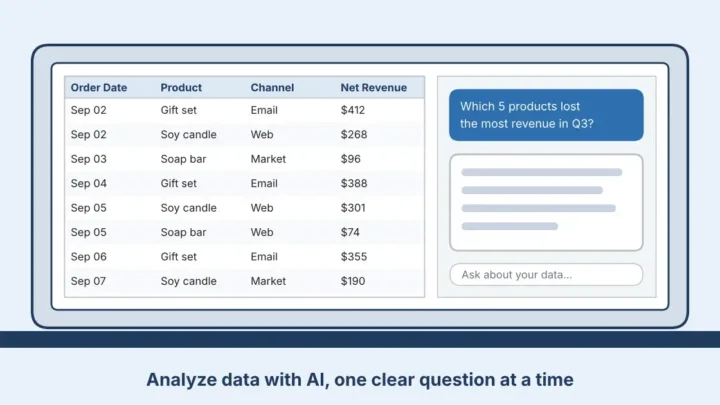
Rather than build a new chart for every question, you ask. Copilot in Power BI (paid capacity required), Ask Zia, Tableau Agent (Tableau+) and Data Studio’s conversational analytics all offer a version of this. Try “Why did refunds rise last week?” or “Which products have under 14 days of stock?”
Automated summaries and metric digests
Tableau Pulse sends digests and threshold alerts to email, Slack or Teams, and a threshold alert only fires once you’ve defined a range for the metric. Zia Insights writes short narratives about trends, and Copilot can add a narrative visual to a report. Check every claim against the numbers before acting.
Step 7: Set Alerts, Owners and a Review Rhythm
An alert nobody owns is noise. Decide in advance who gets each one and what they do first. These thresholds are examples.
| Alert | Threshold | Owner | First action |
|---|---|---|---|
| Return rate | Above 6% for the week | Ops manager | Check returns by product |
| Stock days | Under 14 | Ops manager | Confirm a supplier order |
| ROAS | Below 2.5 for 3 days | Marketing lead | Pause the weakest campaign |
Hold a 15-minute review every week and keep a decision log: date, signal, decision, result. After a couple of months you’ll see which alerts paid off. To automate some of the first actions, see AI automation for business.
Example: An AI Dashboard for a Small Online Store
These numbers are made up to show the method.
Say you run a home-goods store with about 200 orders a week. Your decisions are what to reorder, where to spend on ads and when to worry about returns. A small business AI dashboard for this store needs only four KPIs on one screen: weekly revenue against target, stock days remaining, return rate and ROAS.
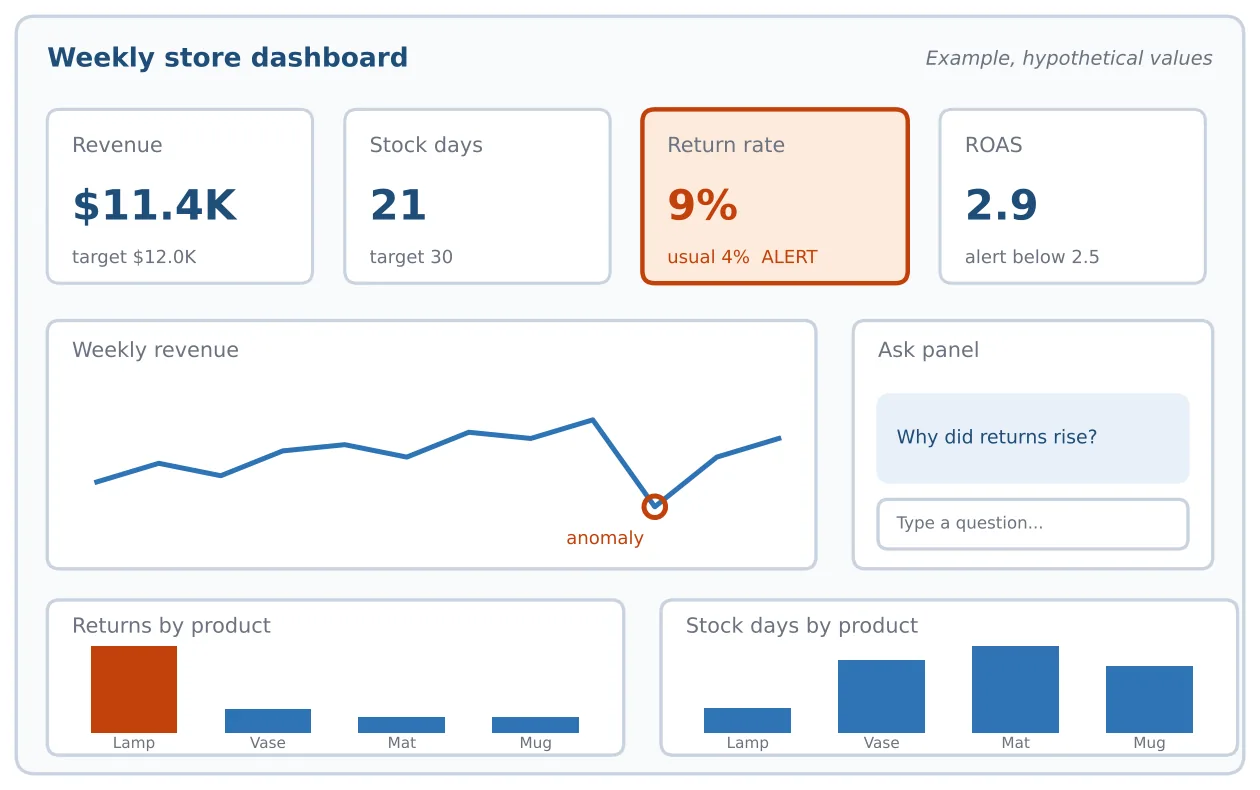
Figure 5. Example layout, hypothetical values.
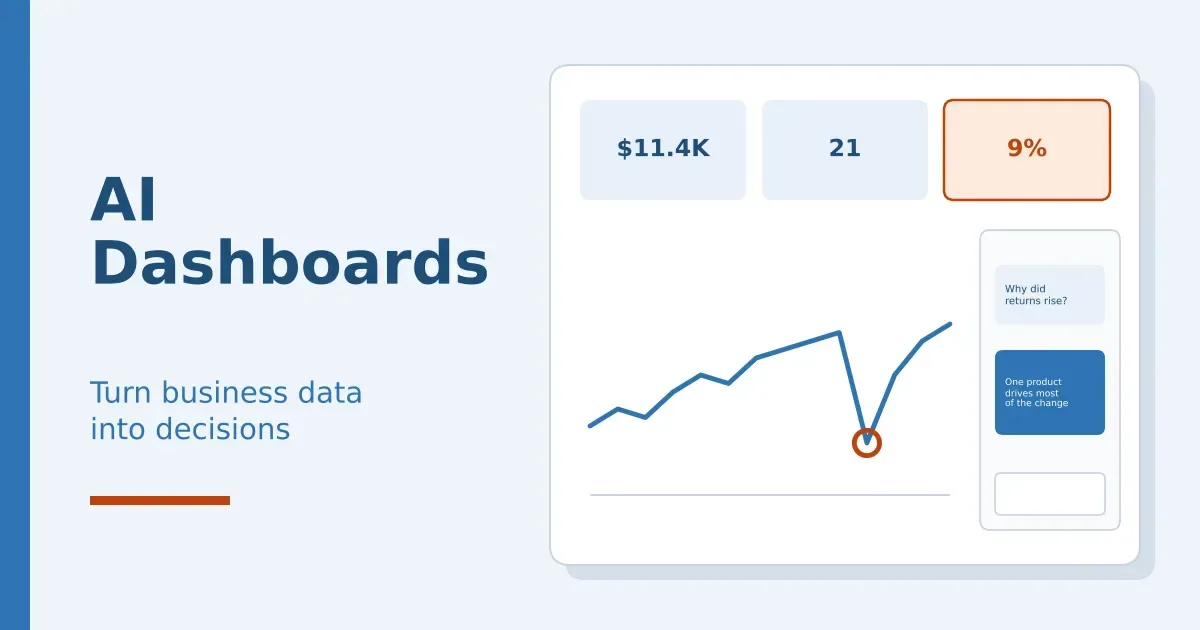
Tuesday’s digest says the return rate hit 9%, against a usual 4%: 18 returns instead of about 8. Maya, the ops manager, asks the Q&A panel why. It points at one product. A ceramic lamp accounts for 11 of the 18.
Now the human work starts. Maya opens the order rows, confirms the data is clean and finds that most return notes mention a cracked base. She pauses the lamp’s ad, emails the supplier about packaging and logs the decision. A week later returns are near 5%. The dashboard found the pattern; Maya found the cause.
Limits of AI Dashboards (and How to Avoid Bad Decisions)
AI surfaces patterns and likely drivers. It can’t tell you why something happened, and a fluent explanation can still be wrong. Four things go wrong most often:
- Stale or wrong data: a broken sync can produce a flawless-looking chart.
- Ambiguous names: “date” could mean order date or ship date.
- Fluent but wrong summaries.
- Over-reliance, when nobody checks.
The fixes are dull but they work: drill to the underlying rows, sanity-check totals against the source, and keep a named person accountable for each KPI.
Read the vendor’s data terms too. Tableau’s help pages say AI in Tableau is built on the Einstein Trust Layer, that third-party LLMs don’t retain your data, and that none of it is used for model training. That’s the kind of plain statement to look for.
FAQ
What is an AI dashboard?
An AI dashboard is a business dashboard with added anomaly detection, plain-English questions, automatic summaries and alerts. It still shows your KPIs in charts and cards. The AI helps you notice changes sooner, but a person still decides what to do.
Can I build an AI dashboard for free?
Partly. Data Studio is free for creators and viewers, Zoho has a free plan (two users, 10,000 rows) and Power BI has a free account, though sharing needs Pro. The AI is where costs show up: Copilot needs paid capacity, and Zoho’s LLM agent starts on Premium. Data Studio’s chat feature is open to free users but reads from agents someone must set up in BigQuery. Check each feature first.
Does Power BI have AI features without Copilot?
Yes. Anomaly detection on line charts is a separate feature in Power BI Desktop and the service, and it suggests likely drivers. Copilot needs paid Fabric (F2 or higher) or Premium (P1 or higher) capacity. Pro or Premium Per User alone doesn’t unlock it.
How many KPIs should a dashboard have?
There’s no official number. Test each KPI: does it tie to a recurring decision, and does the whole set fit on one screen? For most small teams that means a handful. If you can’t say what you’d do when a number moves, drop it.
Are AI-generated dashboard summaries accurate?
Not always. A summary can read smoothly and still misstate a trend, mix up fields or lean on stale data. Check each claim against the chart or underlying rows before acting, especially on money decisions.
Related reading: how to analyze data with AI.
Bottom Line
Build around decisions, keep it to one screen, and let the AI flag changes while a person decides what to do. This week, write down your three recurring decisions and the number behind each. That list is the real dashboard. For more, read how to automate your business with AI.
Was this article useful?
Thanks, that helps us decide what to write next.
Spotted a mistake? Report an error and we will fix it, with a dated correction note.